
How do I install WordPress?
- By zemimk
- In WordPress Инфо
- With No Comments
- Tagged with how to install wordpress mk wordpress wordpress mk
- On 25 Apr | '2026

WordPress is the most widely used CMS platform, allowing you to easily create and manage websites for free. Perhaps the biggest advantages of WordPress compared to competing platforms are its simple and intuitive user interface, which is also available in Macedonian, as well as the large number of free and premium templates/themes and add-ons/plugins. With these, you can personalize your website down to the smallest detail so that it meets all your requirements, both aesthetically and functionally.
Zemi.mk offers one-click WordPress installation through the Softaculous auto-installer. Softaculous is available as a tool in cPanel and, in addition to WordPress, offers installation of many free and premium scripts and web applications. Automatic WordPress installation is available on the basic hosting packages from Zemi.mk, which also use LiteSpeed Web Server, created for maximum optimization of dynamic websites such as those built with WordPress.
To install WordPress, first log in to cPanel using the hosting management details sent to your email after the service has been paid for and activated. The cPanel login link is usually ime-na-vashiot-domen.mk/cpanel.
After logging in, click the WordPress icon shown in the image below.

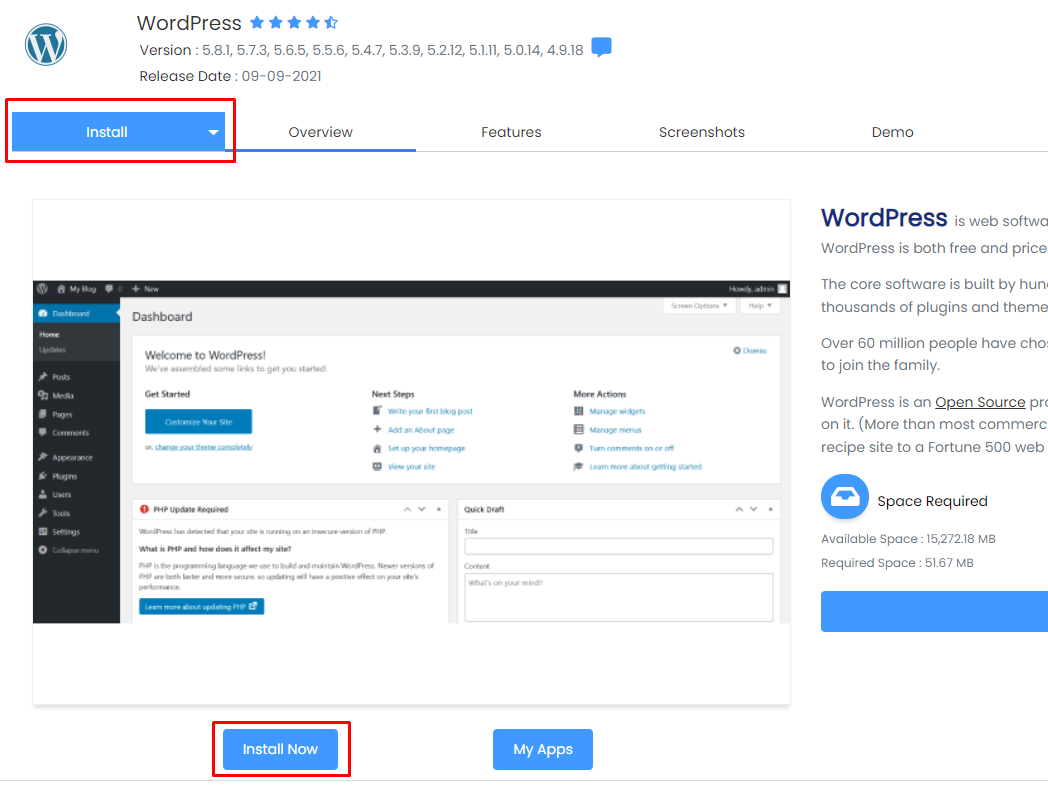
From here, you will be redirected to the WordPress installation page, where you need to click the “Install” or “Install Now” button.
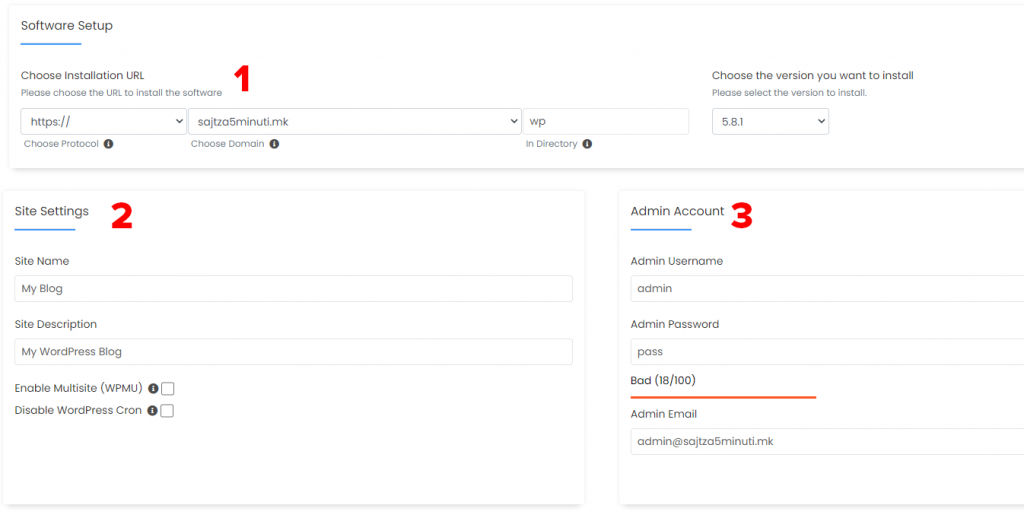
You will then see the page with the settings for your WordPress installation.
- Software Setup (1 in the image)
- Here, you need to set the URL for your website or WordPress installation. By default, Softaculous installs WordPress in the /wp folder as a precaution to avoid overwriting an existing WordPress installation on the main domain. If you are installing WordPress on your domain for the first time, you most likely want to install it in the root folder of the domain, so visitors can access it by entering only your domain, without the /wp extension. If you leave the “In Directory” field filled in with wp, your WordPress website will be available at ime-na-vashiot-domen.mk/wp, but not at ime-na-vashiot-domen.mk. To install WordPress on the main domain, delete wp from the “In Directory” field and leave it empty.
- The version selection field is always set to the latest version available through Softaculous, which is the recommended version for installation. This field should usually remain unchanged.
- Site settings (2 in the image)
- Site name — enter the name of your website here.
- Site description — enter the description of your website here. The name and description can easily be changed after installation through the WordPress admin panel.
- Enable Multisite — whether to enable multiple WordPress websites managed through a single admin panel. This usually remains unchanged and disabled.
- Disable WordPress cron — whether to disable the WordPress Cron system. This is also recommended to remain unchanged and disabled.
- Admin Account (3 in the image) — these are the details you will use to log in to the admin panel in the future, so you can manage your WordPress website. These details are important and should be remembered or written down.
- Admin Username — for better security, it is recommended to change this field and replace “admin” with another username of your choice. Only Latin characters are allowed.
- Admin Password — this is the password for the administrator account and should be complex enough to provide a higher level of security.
- Admin Email — the administrator’s email address.
- Choose Language (4 in the image) — language selection. Macedonian is not listed here, but it is available for selection later through the admin panel.
- Select Plugin(s) (5 in the image) — selection of plugins that will be initially installed on your WordPress website. It is recommended to select Limit Login Attempts (Loginizer), which provides protection against brute-force hacking attacks.

- Advanced options — leave this section unchanged unless you are an experienced user.
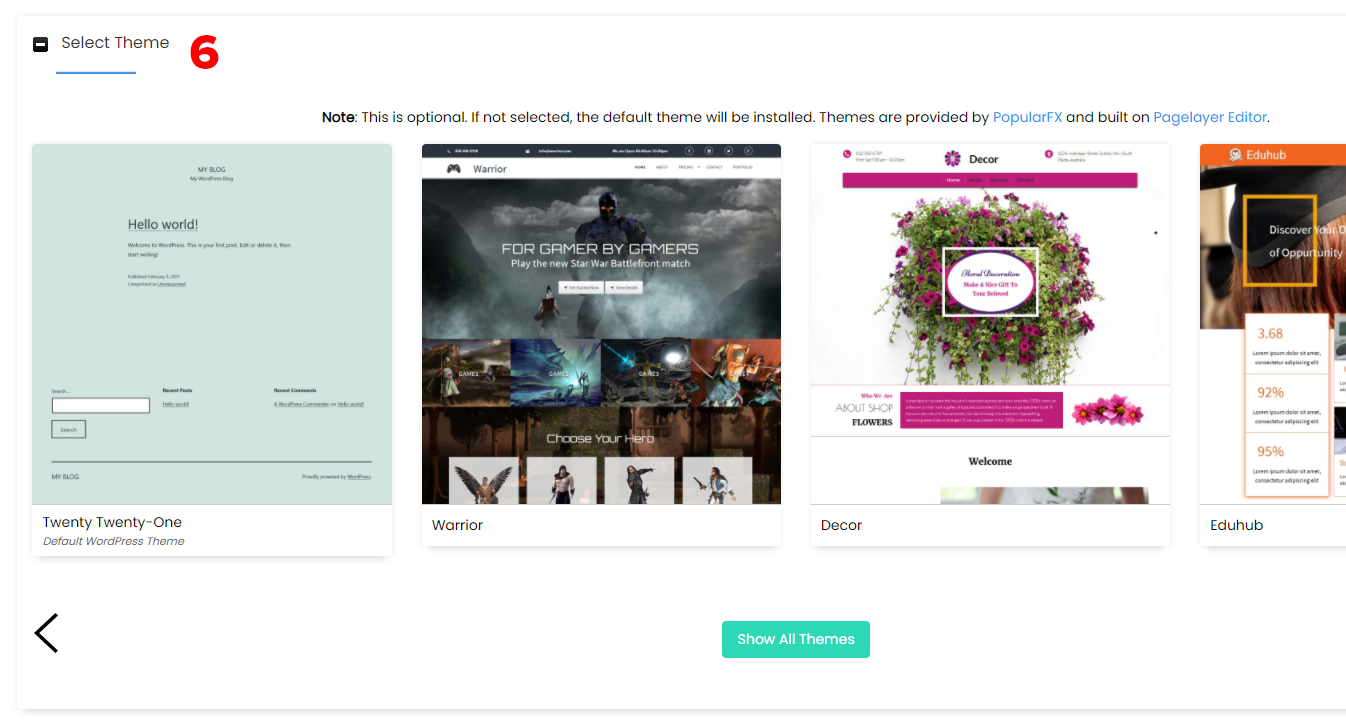
- Select Theme (6 in the image) — here you can choose a theme/design for your WordPress website from the options offered by Softaculous. You can also leave it unchanged if you have already chosen another theme or want to use the default WordPress theme. In the future, you can install and manage themes through the admin panel.
- Click “Install”
After WordPress has been successfully installed, a page will open showing the two most important links for a WordPress website: the website link and the admin panel login link.
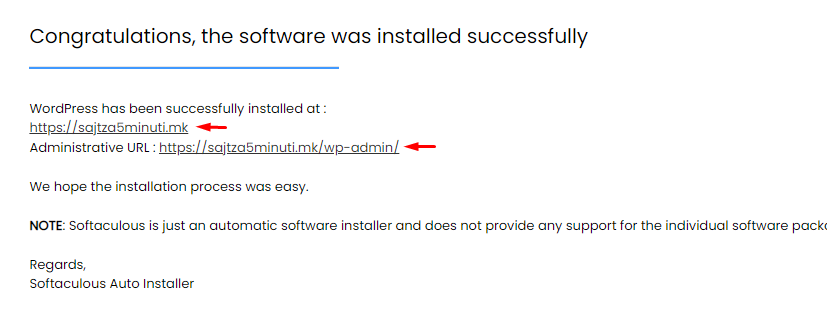
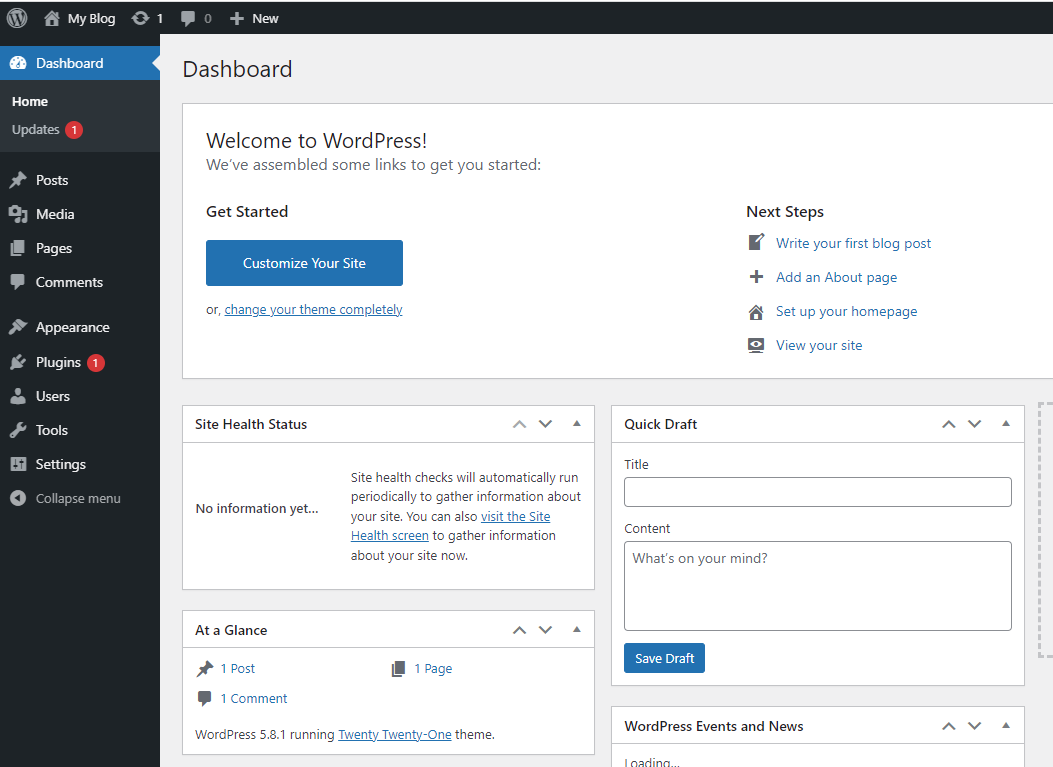
If you click the admin panel login link or “Administrative URL”, you will be redirected to it without needing to log in with the admin panel details you entered earlier. This only happens this time. In the future, when accessing the admin panel link, you will need to enter your username and password.
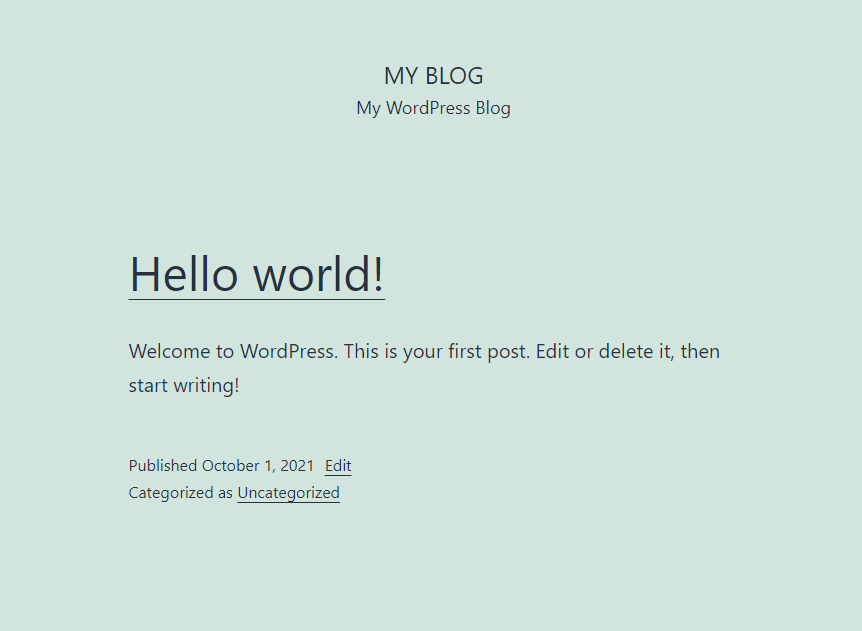
By clicking the main website link, you will be redirected to the homepage of your WordPress website.
You can view the basic hosting packages from Zemi.mk at the following link.
How can I create a website myself? 
Next post
 How to create an email address through the Zemi.mk service?
Previous post