How to create a logo and social media graphics for your new company by yourself, for free?
- By zemimk
- In Инфо
- With No Comments
- Tagged with create logo for free logo design logo for business
- On 25 Apr | '2026

Creating a logo and branding for your new company or brand is by no means a minor step, nor should it be treated as one of those less important tasks for which you allocate no budget at all, or just enough to receive generic graphic solutions. Good branding today can be crucial to the success of your company. Smartly created branding will increase trust among your consumers and clients, increase their affinity toward your products and services, maintain motivation among your employees, and ultimately have a positive impact on the company’s profit.
Before you start creating a logo, have you checked whether the corresponding .mk domain is available? If you haven’t yet, click here and check for free.
However, if you are starting your business on a tight budget and have somehow justified the decision not to spend money on a unique logo and branding, then we would advise you to do it yourself, so you can protect yourself from unwanted comments and also spare local graphic designers, who “love” clients with tight budgets and zero respect for their craft.
There are many free logo makers, but only a small number of them support the Macedonian Cyrillic alphabet. For that reason, in this guide we will focus on the Logo Maker service by Adobe. The process of creating a logo with Adobe’s builder is quite simple and consists of only 3 steps.
To begin, click here and enter the details for your business.
- In field 1, enter the industry or category of your business in English. For the purposes of our example, in field 1 we will enter “makeup”.
- In field 2, enter the name of your business. Here you can also enter a Cyrillic string. We will enter “Мачка”.
- Field 3 is optional and refers to your business slogan. Here, we will enter “Macedonian organic cosmetics”. You should enter the slogan for your business, or leave this field empty if you do not want the slogan to be part of your logo.
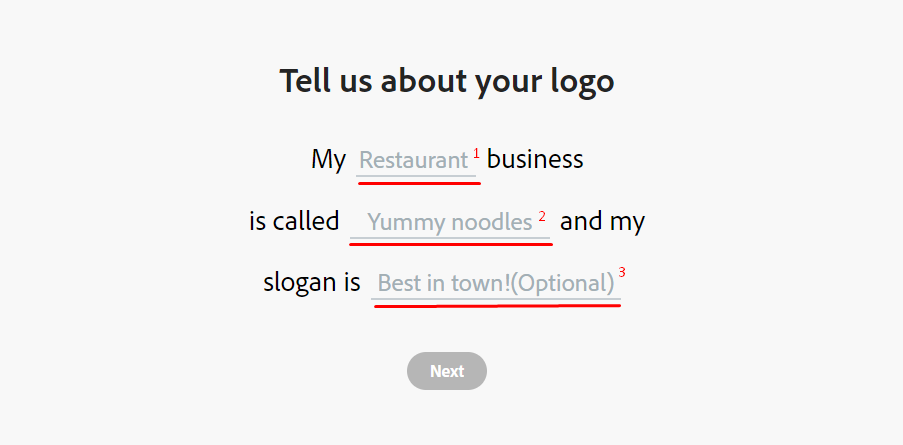
After filling in the fields, click “Next”. In the next step, choose a style for your logo.
- “Bold” — Bold logos include simplified fonts, strong contrasting colors such as black, blue, or red, square shapes, and avoid the use of italic fonts or decorative elements. Another way to design a bold logo is to give it a more rebellious and daring look.
- “Elegant” — In their essence, elegant logos are characterized by grace and a special appeal, which primarily comes from maturity and sophistication in the design, while still leaving a feeling of approachability. Unlike bold logos, elegant logos often include italic fonts and decorative elements.
- “Modern” — Modern logo design is a combination of classic and trendy elements, brought together to create a symbol or logo that looks fresh. Today’s modern design is represented by elegant lines, simple letters, colors, and highly defined elements.
- “Decorative” — Decorative logos are characterized by the use of handwritten fonts, as well as hand-drawn symbols.
Choose the logo style that best matches your vision. If you are not sure which one to choose, you can change the style later. We chose “Elegant”.

After choosing a style, you will be redirected to the page where you can choose an icon for your logo. Here, enter a term in English in the field so that filtered icons from the thousands available are listed for you. Since our brand is called “Мачка”, we entered “cat”. For example, if you are creating a logo for a pizzeria, enter “pizza”, “salami”, “cook”, “italy”, or another term that best fits the vision for your brand. This is the only step that allows you to be creative, so give it more attention. Choosing a suitable, distinctive, and easily recognizable icon can have a positive impact on the success of your business.
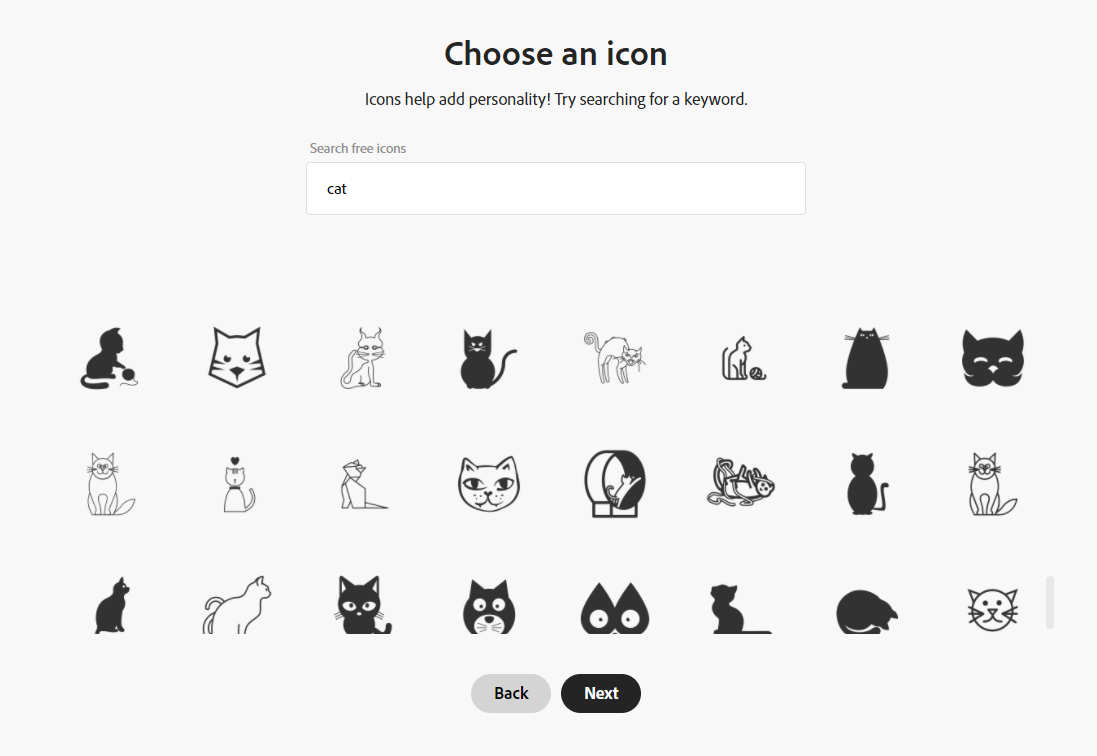
Once you choose an icon and click “Next”, you will be redirected to a page where multiple variations of your logo will be generated. If you like one of them and no changes are needed, click “Download”, after which you will be asked to register for free or log in if you are already registered.

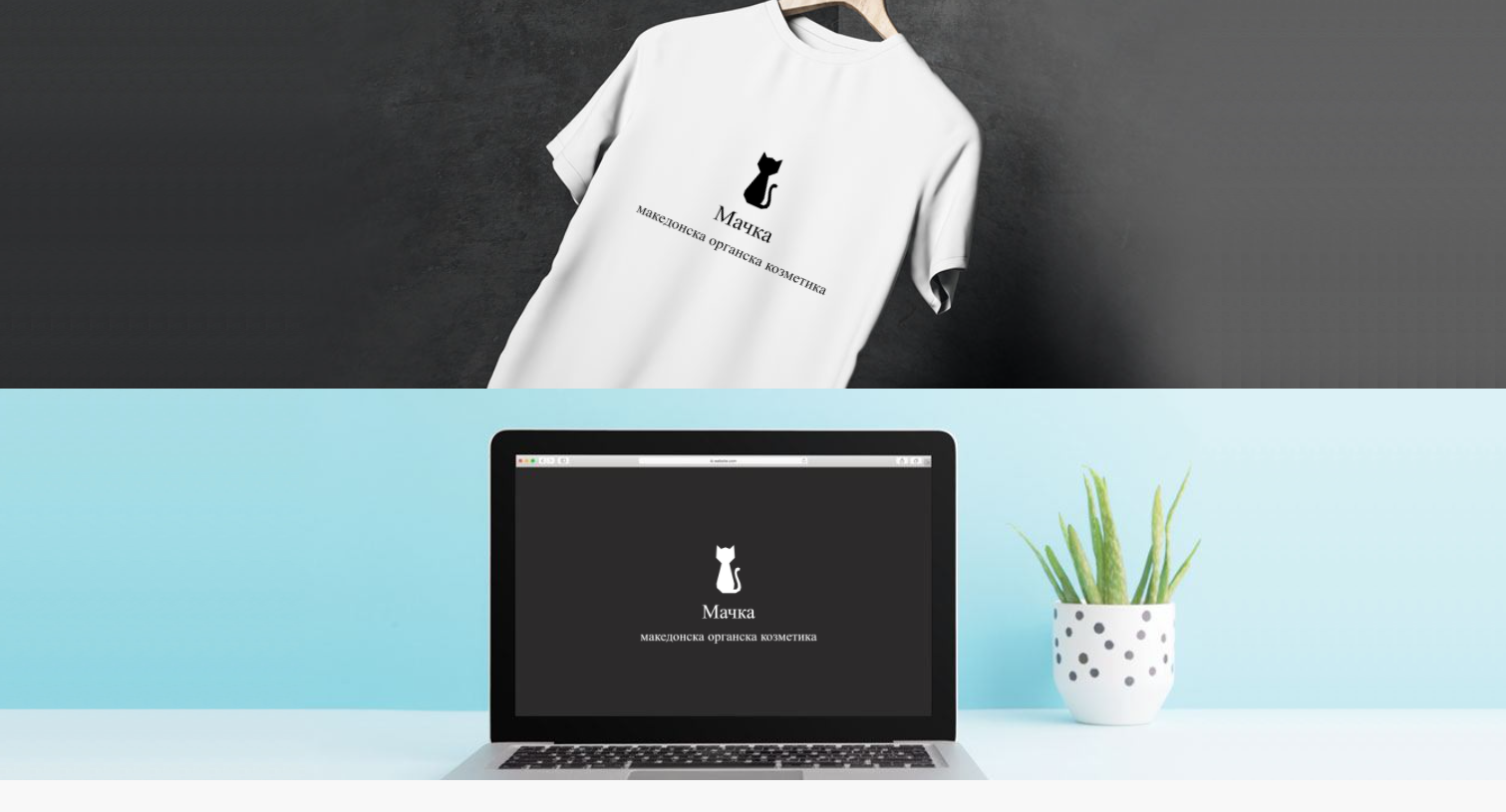
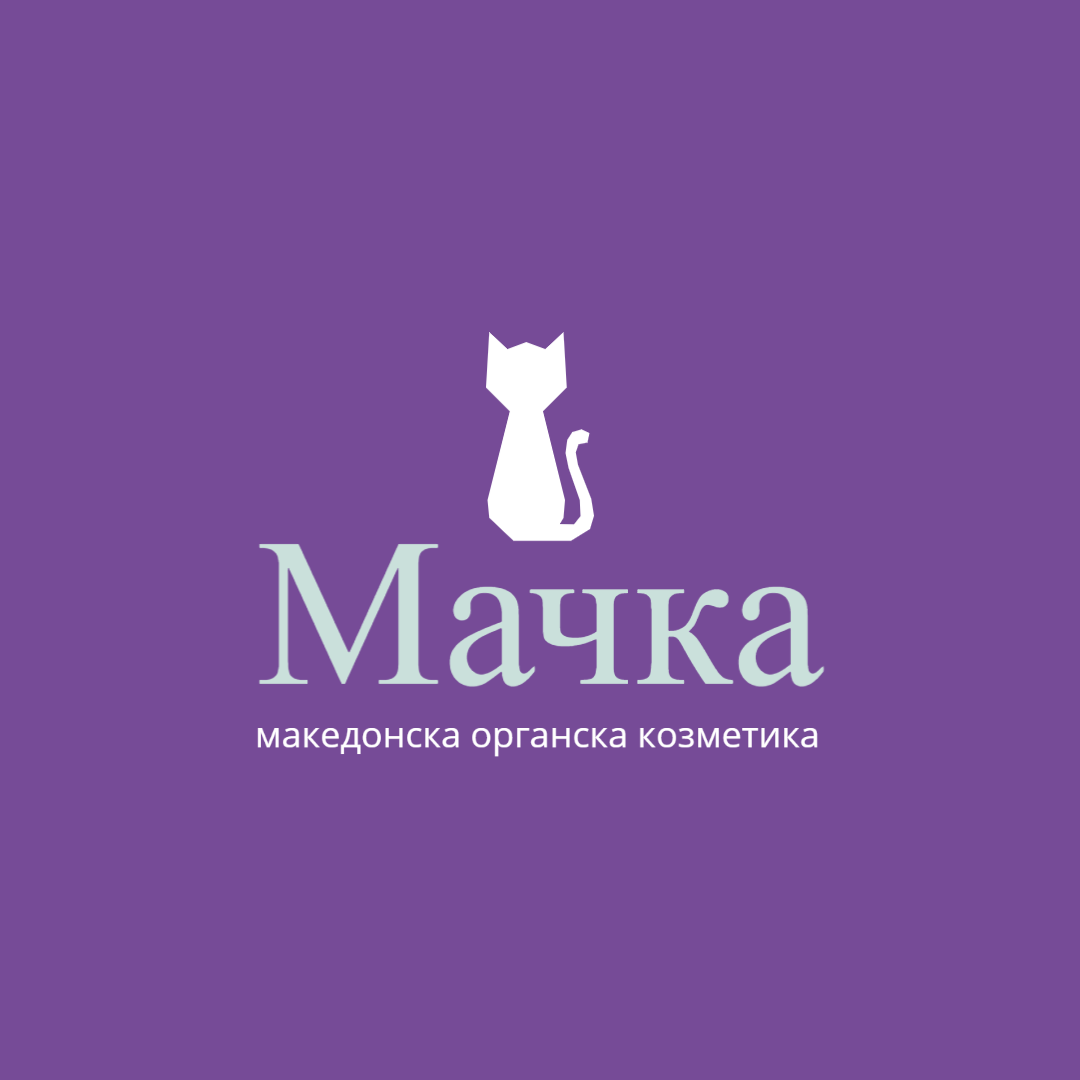
If you want to further refine the logo, click “Customize more”. After logging in, the editor will open, where you can make additional changes. Once you get the desired design, click “Download” in the upper right corner. Download the “PNG” version with a “Solid background”, as well as the “Transparent PNG”. Both will be useful to you in the future. We additionally edited ours until we were satisfied with the following design. The downloaded image can be used as a profile picture on social media.
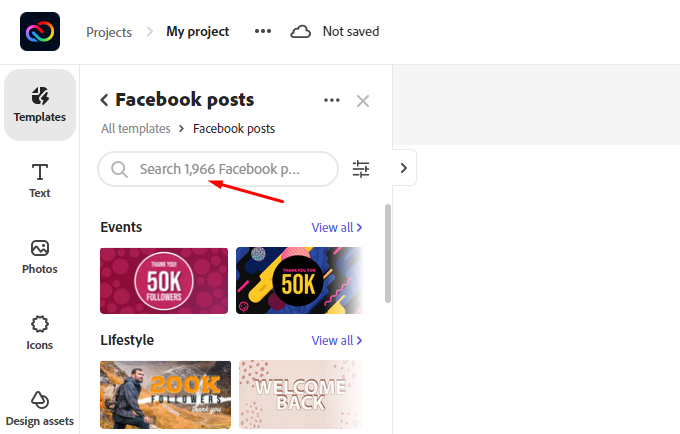
To create free graphics for your brand, go back to Adobe CC Express — click here. Log in if you have not already done so, and click the “+” icon in the upper left corner to start a new project. Choose Facebook or Instagram post, or another format that suits you, then select one of the free templates that will be listed. Free templates are the ones that do not have a small black icon with an orange crown in the bottom right corner. In the search field, we entered “makeup” so that templates matching our industry would be filtered.
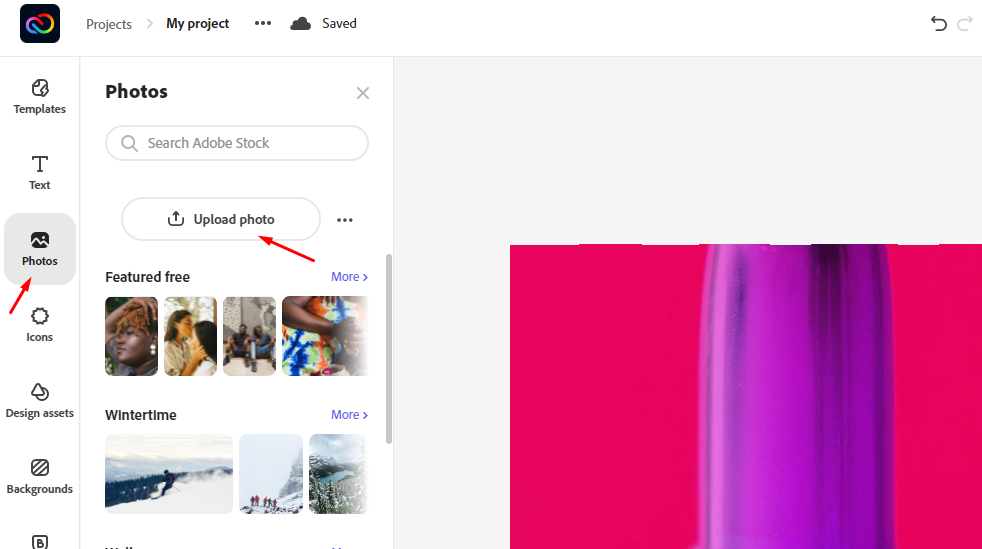
After choosing a template, remove or edit the text and images that come with it, upload the logo — the “Transparent PNG” version, or the version without a background — that we created earlier…
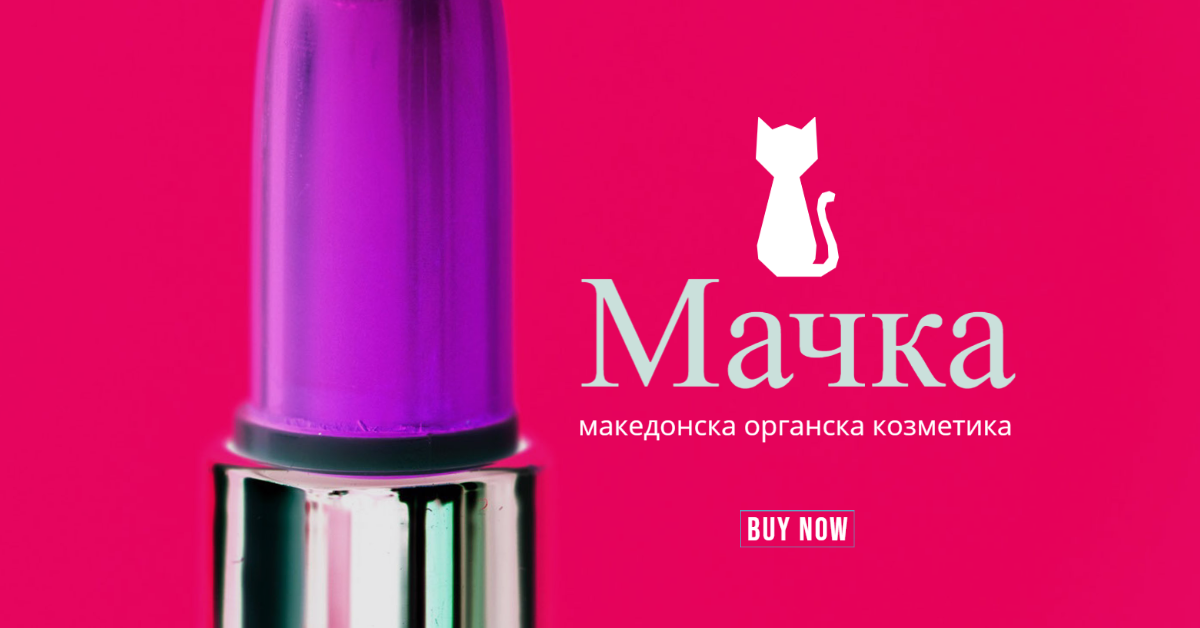
… and you can proceed to download the design by clicking “Download”, also in the upper right corner. This finished graphic can be uploaded to Facebook as a cover photo or as a post.
Source:
What is shared web hosting and how does it work? 
Next post
 Best free themes for WordPress
Previous post